Process Documentation
How to Organize and Search Screenshots for Client Projects on Mac
Build a screenshot workflow for client projects using clear folders, local text search, deliberate editing, and a separate sharing step.
Disclosure: I build Screen Index and Toads. This guide describes an example project workflow and documented product features, not measured time savings.
Updated
Organize client screenshots around the project and task, then search the words inside an image when its filename gives little help. Screen Index provides a Mac workflow for finding, opening, and editing those screenshots. Keep internal source images separate from the copies that your team approves for sharing.
Key takeaways
- Choose a stable project location. A folder gives the team a clear place to keep the original files.
- Search a useful clue. A visible error message, heading, or reference number can be more helpful than a capture date.
- Add context without renaming everything. Useful folders, tags, and written project notes can work alongside text recognition.
- Edit a deliberate sharing copy. A crop or annotation needs a review before it becomes client-facing evidence.
- Keep the handoff explicit. Finding an image, editing it, and sharing it are separate actions.
What a project screenshot library needs to answer
A screenshot becomes useful when someone can find it and understand why it matters. The capture itself often lacks the project decision, next action, or approval status.
A useful library answers three questions: which project owns the image, what task it supports, and whether it is ready to share. The filename can help, but it does not need to carry the whole explanation.
Screen Index adds recognized-text search and other retrieval tools. The project still needs clear ownership and a sharing process. Search is part of that workflow, not a replacement for it.
1. Choose the project folder and its owner
Use an approved location for the screenshots that belong to the project. Separate projects or access groups when that helps your team keep the right boundaries.
Name the folder so another teammate can recognize it. Record who maintains it and how the team handles older material. Avoid a system that depends on one person’s memory of every capture.
For sensitive project material, follow the team’s storage and access rules. A screenshot can include customer details, messages, or internal controls that the intended reader does not need.
2. Add the folder to Screen Index
Open Screen Index. Choose the folder that the app can access. Let its recognition work finish before evaluating a text search.
The product’s text-search guide describes local OCR, or optical character recognition. OCR turns readable text in an image into searchable data. The original filename does not need to describe those words.
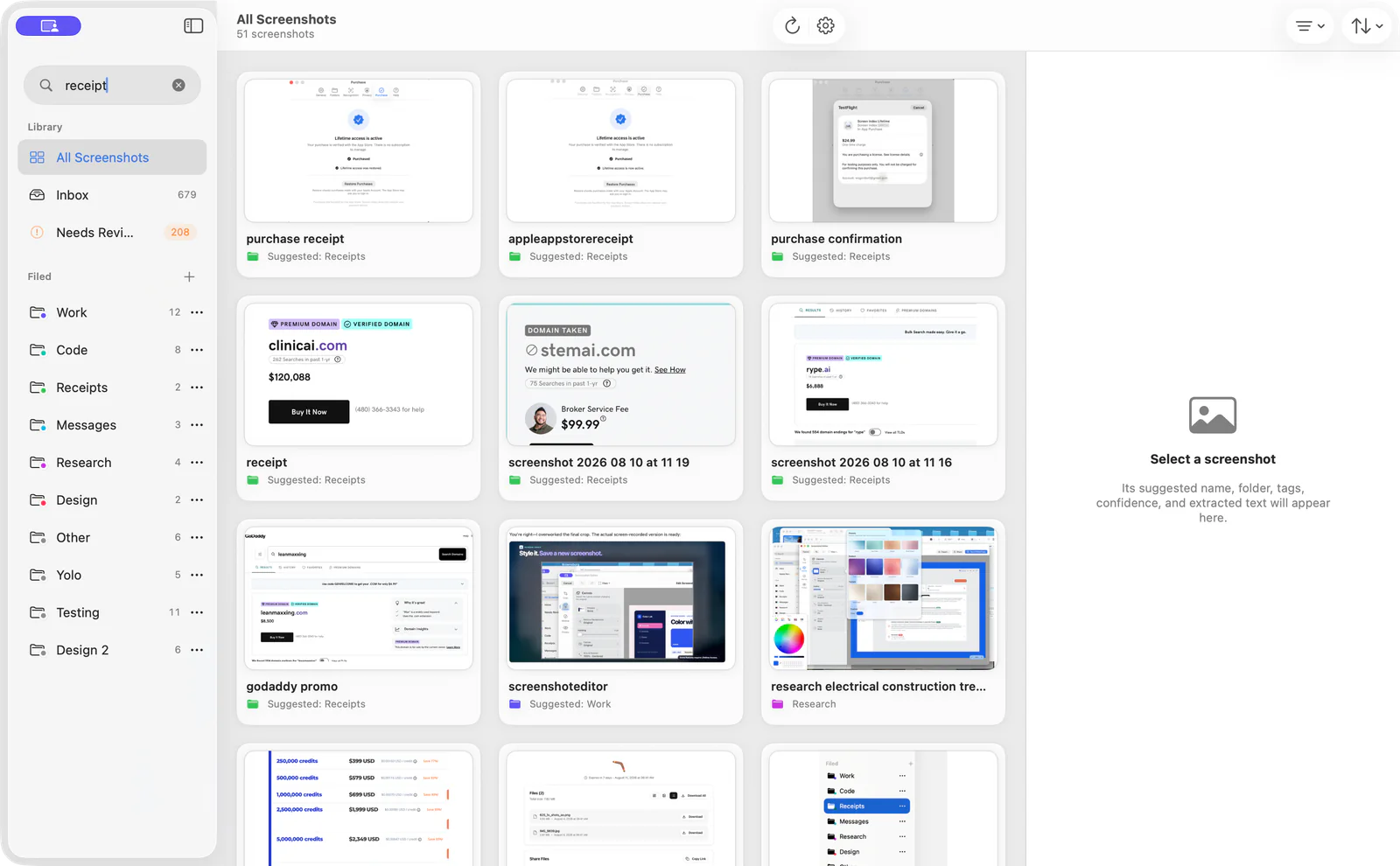
Start with a clear image that you already know. Search a visible phrase and open the result. This gives you a useful first check with your own material.
3. Use the clue that belongs to the task
For a bug report, search a distinctive error fragment. For a design review, search a visible heading or product name. For a record of a transaction, search an approved reference number.
Use information that is actually visible in the image. If a full phrase gives no result, try a shorter distinctive word. Small text, blur, and unusual layouts can affect recognition.
The current Screen Index product page also describes clues such as source app, captured URLs, QR codes, tags, and image content. Those clues depend on the data available for that screenshot. An exact source webpage is not recoverable from every old image.
4. Add enough project context
Use folders or tags that reflect the work. A small set of meaningful categories is easier to maintain than a large list nobody applies consistently.
For example, a project can distinguish issue evidence, design references, meeting follow-ups, and approved handoff images. Those are example categories, not a required taxonomy.
Keep the decision and next action in the project system that owns them. A screenshot supports a decision record. It does not replace the record or identify who approved it.
| Image purpose | Useful context | Handoff question |
|---|---|---|
| Issue evidence | Project, task, date, visible error | Who owns the investigation? |
| Design reference | Project, version, decision note | What is approved or still open? |
| Meeting follow-up | Task and next action | Who acts next? |
| Client handoff | Approved copy and recipient context | Is this version ready to share? |
5. Prepare the version that the client needs
Open the screenshot that supports the task. Crop or annotate it to make the useful detail visible. Review any customer, account, or internal information before sharing.
The product page documents editing tools that include markup and ways to cover private details. Those tools do not establish that every sensitive detail is removed. Review the exported copy at a useful viewing size.
Keep the original when your workflow needs it. Name the approved sharing copy so the recipient can understand its purpose. Use the team’s approved channel for the actual handoff.
6. Separate capture context from proof
A captured source app or URL can help you return to related work. It is context, not automatic proof that a screenshot shows the current state of a live system.
If the task depends on current behavior, check the live system through the approved process. Record the date and relevant state in the project notes. Keep a dated screenshot as supporting evidence.
For a video explanation, use a Mac recorder suited to team training. Keep the same review rules for visible customer information.
Troubleshooting a screenshot search
| Symptom | Useful check | Next action |
|---|---|---|
| No expected image | Folder access and recognition progress | Choose the intended folder and allow recognition to finish |
| No phrase match | Readability and exact visible words | Try a shorter clear word |
| Too many matches | A distinctive second clue | Narrow the query or project context |
| No exact source URL | Whether capture context saved one | Use the available app or project record |
| Sharing copy is unclear | Crop, markup, and viewing size | Revise the copy and review it again |
A small evaluation with your own files
Choose a few screenshots that represent your project work. Include a clear heading, a short error message, and an image with less readable text. Write the clue that you expect to use for each.
Try the searches after recognition finishes. Record which clues retrieve the intended file and which need another approach. This is a practical evaluation plan, not a claim about a measured recognition rate.
For the full handoff, read how to document a process with video and screenshots. For the operating structure, use the process documentation guide.
Sources and review date
Reviewed October 23, 2026: Screen Index and its text-search guide. Product screenshots contain example material. Feature access and requirements follow the current product and Mac App Store listing.

About the Author
Will Gordon
Will Gordon is the founder of Business Process Review and Chief Technology Officer at Billfy. He works on workflow systems, automation, and partnerships in the ServiceNow ecosystem, with a focus on practical operational improvements for growing businesses.
Connect with Will on LinkedInFAQ
Common Questions
What is OCR screenshot search?
OCR converts readable image text into searchable data. It helps find a screenshot by visible words even when its filename is only a date.
How do I organize screenshots without renaming every file?
Use a stable project folder and a small set of useful tags or categories. Add recognized-text search for clues inside the images.
What should I search for in a client project?
Try a visible error fragment, heading, product name, or approved reference number. A distinctive clue usually gives a more useful first query.
How does Screen Index handle screenshot text search?
Its public guide describes OCR and search that run on the Mac. Follow the current product guidance for folder access and feature availability.
What happens when an old screenshot has no source URL?
Use the available image and project context. Exact webpage context depends on what the app captured for that image.
How do I prepare a screenshot for a client?
Create a clear sharing copy and review it for private information. Share through the approved project channel after the relevant review.