Process Documentation
Best Mac Screen Recorders for Team Training and SOPs in 2026
Compare Toads, Screen Studio, Loom, and Apple’s built-in recording tools for training videos that support clear, maintainable operating procedures.
Disclosure: I build Toads and Screen Index. This shortlist includes my product and describes workflow fit, not results from a controlled performance comparison.
Updated
Toads is my starting recommendation for Mac teams that want to record, edit, and export a training video in one app. Screen Studio suits presentation-focused recordings. Loom suits link-based video communication. Apple’s built-in tools suit a basic capture. Choose a recorder for the training work after the capture, including review, correction, delivery, and maintenance.
Key takeaways
- A video supports an SOP. The written procedure still needs an owner, trigger, required inputs, and expected result.
- Editing affects the handoff. Remove mistakes and unrelated waiting before asking a teammate to follow the recording.
- Choose the delivery model. An exported file and a hosted sharing link create different review and access tasks.
- Use sample data. A training recording can reveal customer records, messages, and other information that the viewer does not need.
- Plan the next update. Keep the source project and name the person responsible when the workflow changes.
What a training recorder actually needs to do
A training video shows the visible work. It can explain a sequence, point out an important control, and demonstrate an expected result. A standard operating procedure also explains the decisions around that sequence.
That distinction changes the buying criteria. The most polished motion effect does not establish whether an employee understands an exception. A fast capture does not establish that the shared file has the right access settings.
Before choosing an app, name the learning task. Decide what the person must do after watching, which part needs a demonstration, and where written instructions remain necessary. Then compare tools using that same task.
How we ranked these Mac recording options
This shortlist compares four criteria: capture and editing workflow, delivery model, published pricing model, and the training use case. Product pages were reviewed on October 23, 2026. The recommendations reflect fit, not measured differences in learning outcomes or production speed.
Use one sample procedure for your own evaluation. Record the same short task. Review the edit, exported or shared result, and the work required to replace an outdated instruction.
The best Mac screen recorders for training workflows
1. Toads, for recording and editing a reusable training asset
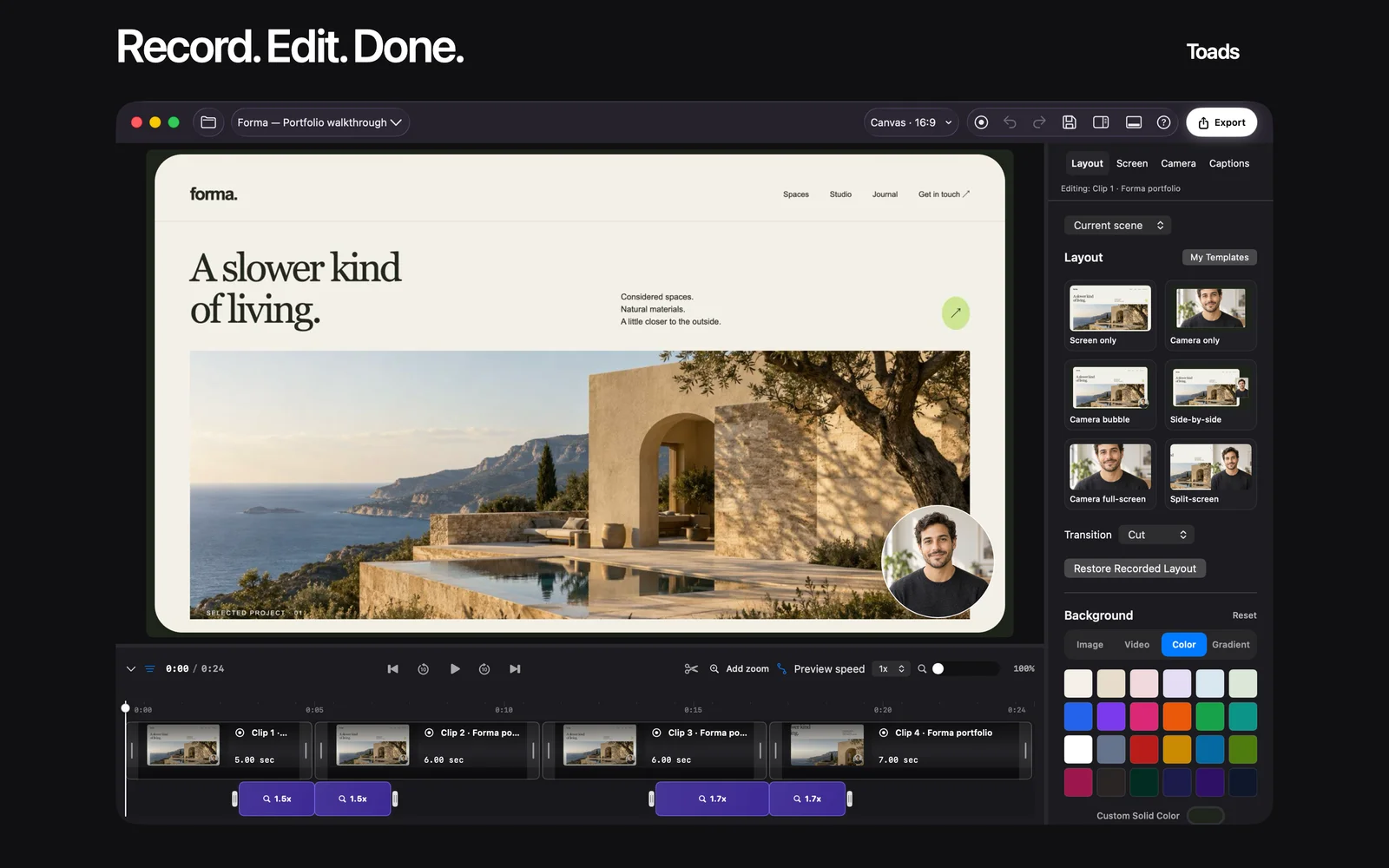
Toads is a native Mac app for recording a screen, editing the capture, and exporting a finished video. Its public workflow includes timeline edits, captions, and video export.
The current website offer lists $99 once, with a seven-day website trial. It lists future major Mac updates and use on three personal Macs. That personal-device allowance is not a claim that one license covers an entire workforce.
For a training process, the useful fit is control over the finished asset. You can prepare a recording, remove an error, and export the version that the team approves. Keep that file with its written procedure and review date.
Check the current requirements and edition guidance before choosing a feature. Caption requirements and edition-specific features need their own review. This shortlist does not announce a new MCP release.
Best suited for: Mac teams that want a native capture-and-edit workflow and an exported training file. Use a separate approved location for distribution and access control.
2. Screen Studio, for presentation-focused training recordings
Screen Studio focuses on polished Mac recordings, including zooms, motion, and framing. Its presentation tools make it an option when a visible demonstration needs careful emphasis.
For training, evaluate clarity rather than motion alone. Check whether a viewer can see the control, understand the action, and identify the result. Keep the recording aligned with the written steps.
Review the current pricing and license offer on the product site. This guide does not quote a fixed price for an offer that can change. Compare the full workflow, including edits and the final file, with the other tools.
Best suited for: Teams that prioritize presentation and visual emphasis in Mac demonstrations. Use the same sample procedure to judge whether the result helps the learner.
3. Loom, for a hosted video conversation
Loom describes a recording and sharing workflow built around a video link. Its public features include screen capture, quick edits, recipient feedback, and captions.
That model can fit a training conversation where people need to comment on a demonstration. It also creates a distribution decision: who can open the link, where the video lives, and how an outdated version gets replaced.
Review the current plan limits and workspace settings before choosing it for a procedure library. This guide does not treat a free recording offer as unlimited long-term storage or unlimited team access.
Best suited for: Teams that want a hosted link and feedback around a video. Include the sharing and retention workflow in the evaluation.
4. Apple Screenshot and QuickTime, for a basic capture
Apple’s screen recording guide documents the built-in Screenshot and QuickTime options. Screenshot opens with Shift-Command-5 and provides recording controls for the Mac screen.
These tools give you a useful starting point when the task needs a simple capture. The broader process still needs a decision about editing, written instructions, storage, and distribution.
Check Apple’s current instructions for the controls available on your Mac. Recording and audio options can depend on the macOS version. Avoid choosing a training workflow from an old shortcut tutorial alone.
Best suited for: A straightforward demonstration that does not require a dedicated editing workflow. Start here when a basic recording is enough to test the learning task.
Side-by-side comparison
| Option | Main workflow | Published offer or model | Useful training fit |
|---|---|---|---|
| Toads | Native recording, editing, export | $99 once; seven-day website trial | Maintained exported training assets |
| Screen Studio | Presentation-focused Mac recording | See current purchase offer | Visual emphasis in demonstrations |
| Loom | Recording and hosted sharing | Plan-based offer; review current limits | Link-based feedback and communication |
| Apple tools | Built-in screen capture | Included Mac tools | Basic demonstration capture |
Which recorder fits your use case?
| Your task | Option to examine | Review before adopting |
|---|---|---|
| Maintain a reusable video file | Toads | Edit, export, and future replacement |
| Emphasize a polished demonstration | Screen Studio | Visual clarity and workflow fit |
| Collect feedback through a video link | Loom | Access, retention, and plan limits |
| Capture a basic sequence | Apple Screenshot or QuickTime | Available recording and audio controls |
A team can use different tools for different tasks. A quick clarification and a maintained procedure library do not require identical delivery models. Keep the choice tied to the viewer’s task and the organization’s access rules.
A repeatable training-video workflow
- Define the task and the expected result.
- Prepare sample records and a clean workspace.
- Record one complete demonstration.
- Remove mistakes and unrelated waiting.
- Review captions and visible private information.
- Ask a teammate to follow the procedure.
- Store the approved version with its written steps and owner.
Keep an exception note beside the video. Explain when the normal sequence does not apply and who handles that situation. An employee needs a route through the exception, not just a recording of the ideal case.
For the written part, use the process documentation guide. For the complete asset workflow, read how to document a process with video and screenshots.
Sources and review date
Reviewed October 23, 2026: Toads, Toads requirements, Screen Studio, Loom, and Apple screen recording. Verify current prices, requirements, and edition availability before purchase.

About the Author
Will Gordon
Will Gordon is the founder of Business Process Review and Chief Technology Officer at Billfy. He works on workflow systems, automation, and partnerships in the ServiceNow ecosystem, with a focus on practical operational improvements for growing businesses.
Connect with Will on LinkedInFAQ
Common Questions
What is the best Mac screen recorder for team training?
Choose from the full training workflow. Toads fits native recording and editing, while the other options serve presentation, hosted sharing, or basic capture needs.
How is a training video different from an SOP?
The video demonstrates visible work. The written procedure also defines ownership, inputs, decisions, exceptions, and the expected result.
What does Toads cost?
The current website lists $99 once and a seven-day website trial. Review current terms, requirements, and edition details before purchasing.
How do I record a screen with built-in Mac tools?
Apple documents Screenshot and QuickTime. Shift-Command-5 opens Screenshot, with controls depending on the Mac and macOS version.
What information belongs outside the recording?
Keep the owner, review date, exceptions, and escalation path in written form. Link them to the approved video version.
How do I evaluate a recorder fairly?
Use the same sample procedure in each tool. Review capture, editing, distribution, and the work needed to replace an outdated instruction.